

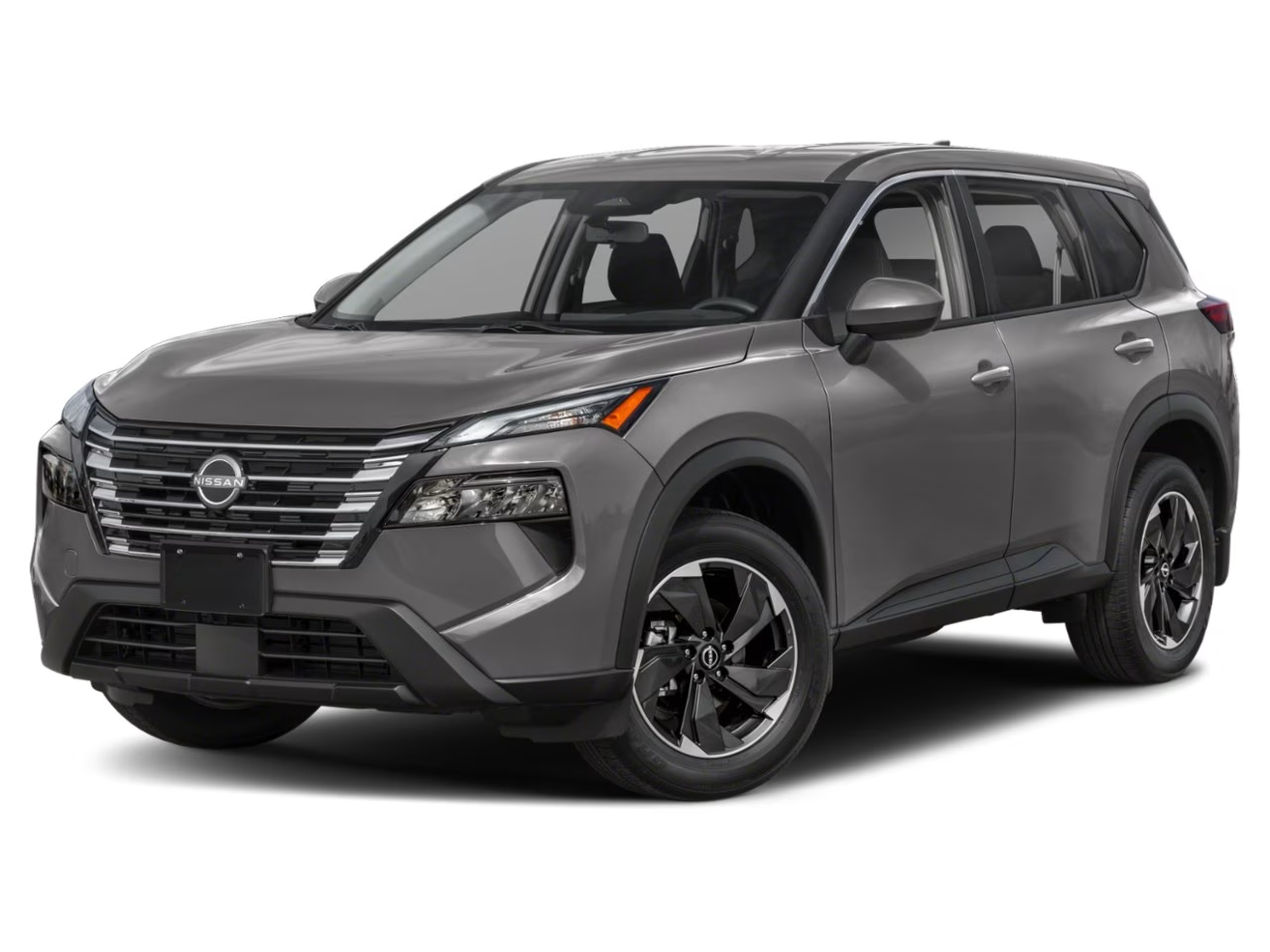
How to Pair Your Phone to Nissan Rogue's Infotainment System
Posted at Wed, Dec 23, 2026 1:00 PM
THE SHORT ANSWER
Park the Rogue, turn on your phone's Bluetooth, then add a new device from the Bluetooth menu on the center screen and confirm the matching passkey on both screens. After that, connect Apple CarPlay or Android Auto by USB data cable, or wirelessly if your Rogue supports it, and accept the prompts on both the phone and the screen.
A new or new-to-you Rogue feels a lot more like yours once your phone connects without any fuss. At Krishna Nissan in Greenvale, phone setup is one of the most common things drivers ask us about at delivery, and it's simple once you know the order of steps. Here's how to pair over Bluetooth, set up Apple CarPlay or Android Auto, and fix the hiccups that trip people up.
IN THIS POST
Before You Start
Most pairing headaches start before anyone touches the screen. Put the Rogue in Park with the vehicle on, since many cars block phone setup while moving. Keep your phone unlocked and close to the console.
A quick checklist helps:
- Bluetooth is turned on in your phone's settings, and the phone can be found by new devices.
- Your phone's software is current, because outdated software causes a lot of dropped connections.
- You have a USB cable that carries data, not just a charge, if you plan to use a wired connection.
- No other phone in the car is trying to grab the connection at the same time.
It also helps to know what you're setting up. Plain Bluetooth handles calls and audio streaming. Apple CarPlay and Android Auto go further and put your maps, messages, and music apps on the Rogue's center screen. Most people pair Bluetooth first and add phone projection afterward.
Menu names can differ a little between trims, from the S up to the Platinum, and between software updates. If a label on your screen doesn't match the wording below, look for the closest option. The steps work the same way.
Pairing Over Bluetooth, Step by Step
From the home screen, it only takes a few taps:
- Tap Settings or the phone icon on the center screen.
- Choose Bluetooth, then pick the option to add or connect a new device.
- On your phone, open Bluetooth settings and select the Rogue when it appears.
- Confirm the passkey. The code on your phone should match the one on the screen. Tap pair on both.
- Allow access to contacts and messages when your phone asks.
Don't skip that last step. Without it, calls still work, but contact names won't show up and the system can't read incoming texts aloud. You can change these permissions later by tapping the Rogue's name in your phone's Bluetooth settings.
After the first pairing, your phone should reconnect on its own each time you start the vehicle. Give it a few seconds after startup before you decide it didn't work, because the car and phone need a moment to find each other.
Making It Yours
Make a test call while you're still parked to check the volume and microphone. Steering wheel buttons answer calls, hang up, and start voice commands, so your hands can stay on the wheel on Northern Boulevard or the Long Island Expressway.
Setting Up Apple CarPlay and Android Auto
Apple CarPlay
Plug your iPhone into the Rogue's USB port with a data cable. If your Rogue supports wireless CarPlay, start with the Bluetooth pairing above instead. The screen will ask whether you want to turn on CarPlay. Accept it there, then confirm on your iPhone.
If no prompt appears, go to Settings, then General, then CarPlay on your phone and select the vehicle. Screen Time restrictions can also turn CarPlay off, so check there if it seems blocked.
Android Auto
Newer Android phones come with Android Auto built in. Older ones may need the app from the Play Store. Connect by cable, or wirelessly where your Rogue supports it, then accept the prompts on the phone and the screen and grant the permissions it asks for. Keep the phone unlocked during that first setup, because some prompts only appear on an unlocked screen.
Once set up, both systems usually launch on their own each time you get in. You can rearrange the app icons from your phone, so put navigation and music up front. If wireless phone connection matters to you, check how it works on the trim you're considering when you book a test drive.
When It Won't Connect
Nearly every pairing problem we see comes down to a few causes, and most take under a minute to fix. Try these in order:
- Forget and re-pair. Delete the Rogue from your phone's Bluetooth list and remove your phone from the vehicle's device list. Then pair from scratch.
- Restart your phone. It sounds too simple, but it clears a lot of stuck connections.
- Swap the cable. Cheap or worn cables are a top reason wired CarPlay and Android Auto keep dropping out.
- Try a different USB port. Some ports in a vehicle only charge and don't carry data.
- Check the device list. If several phones are saved, the system may be connecting to someone else's first.
- Update your phone, and ask whether the Rogue has a software update waiting.
If music plays but calls don't come through, open the Rogue's entry in your phone's Bluetooth settings and make sure phone calls are switched on. If texts don't appear, check the message permission again.
Still having trouble after all that? The cause may be a software or hardware issue that's easier to diagnose in person. Our technicians can take a look when you book service, so you don't have to keep guessing in the driveway.
Sharing the Rogue Between Drivers

Most households have more than one phone riding along. The Rogue can save several devices, so each driver only has to pair once. On any given day, you can choose from the device list whose phone is connected.
A few habits make sharing easier:
- Give your phone a name you'll recognize, so it doesn't show up as a generic model name.
- Turn off Bluetooth on a passenger's phone if it keeps taking over the connection.
- Remove old phones from the list after you upgrade.
Selling or Trading In
Delete your phone and personal data from the vehicle before it goes to a new owner. Otherwise, call logs and contacts can stay in the system. Look for a delete-all or factory reset option in the settings menu, then remove the vehicle from your phone as well.
At Krishna Nissan in Greenvale, our team will help you pair your phone when you pick up a new Nissan or a pre-owned vehicle. We can answer financing and lease questions along the way, too. If you're shopping now, browse our new Nissan inventory and bring your phone with you, and we'll set it up before you drive off the lot.
Where
235 Glen Cove Rd
Greenvale, NY
Call
KEY TAKEAWAYS
- Pair in Park with your phone unlocked, and allow contacts and messages access so names and texts show up.
- Most connection problems clear up when you forget and re-pair the phone, restart it, or swap in a good data cable.
- Clear your phone and personal data from the Rogue before you sell or trade it in.
FAQ
Common questions
Do I need to pair Bluetooth before using Apple CarPlay or Android Auto?
For a wired connection, no. Plug in a data cable and accept the prompts. For a wireless connection, Bluetooth pairing usually comes first, and the CarPlay or Android Auto prompt follows right after.
Why don't my contacts show up after pairing?
Your phone probably didn't get permission to share them. Open your phone's Bluetooth settings, tap the Rogue's name, and turn on contact sharing. On an iPhone, you may also need to turn on Sync Contacts. Names usually appear after the phone reconnects.
Is pairing the same on every Rogue trim?
The steps are the same from the S to the Platinum. Menu labels and wireless phone options can vary a little by trim and software version, so if a name on your screen looks different, choose the closest match.
Will Krishna Nissan help me set up my phone?
Yes. We're happy to pair your phone when you take delivery of a new or pre-owned vehicle, and you're welcome to stop by afterward if something stops connecting the way it should.
Want to see it in person?
Come by for a test drive, or browse what is on the lot right now.
Or call (516) 621-2300 · 235 Glen Cove Rd, Greenvale